HTML5 game development with Phaser comes down to three ideas: a game config that sets up the canvas, scenes that hold each screen of your game, and game objects you add to those scenes. In this tutorial you'll use all three to build Star Catcher, a small but complete game: catch falling stars, dodge bombs, keep your three lives and beat your best score, with arrow keys or by dragging a finger.
Everything here uses Phaser 4.2.1, released on 9 July 2026 and still the latest version in October 2026. It's the same version our 41 Phaser games run on. If you've used Phaser 3 before, most of it will look familiar; the section on what changed in Phaser 4 lists the differences.
What you'll build and what you need
Star Catcher has a title screen, the game itself and a game over screen with your best score. Items fall faster as your score goes up, about one in four is a bomb, and a missed star or a caught bomb costs a life. It's about 250 lines of TypeScript across four files.
You need:
- Node.js (a current LTS version) to install packages and run the dev server.
- A code editor. Visual Studio Code works well because Phaser ships TypeScript definitions, so you get autocomplete for the whole API.
- A browser, and ideally a phone on the same Wi-Fi network for testing touch.
You don't need any images or sounds: the game draws its own textures with code, so you can follow along without downloading assets. If you're still deciding on an engine, our comparison of HTML5 game engines explains where Phaser fits.
Why use the Phaser HTML5 game framework?
Phaser is a free, MIT-licensed framework for 2D browser games. It gives you a WebGL renderer, scenes, an asset loader, Arcade and Matter.js physics, tweens, cameras, particles, tilemaps, sound and input for keyboard, mouse, touch and gamepad. You write normal JavaScript or TypeScript, and the result is a static website you can host anywhere. That combination is why we build our 2D games with it, and why it's a good first framework: you learn real web development while you make the game.
Step 1: Create the project
The fastest start is Phaser's official project generator, which asks a few questions and downloads a template:
npm create @phaserjs/game@latestIn this tutorial we set the project up by hand instead, so you can see every file. Vite gives us a dev server with instant reload and a production build:
npm create vite@latest star-catcher -- --template vanilla-ts
cd star-catcher
npm install
npm install phaser
If the tool asks extra questions, accept the defaults. Then delete the demo files Vite created in src/ and create this structure:
star-catcher/
  index.html
  package.json
  tsconfig.json
  src/
    main.ts
    scenes/
      BootScene.ts
      MenuScene.ts
      PlayScene.ts
Prefer plain JavaScript? Use --template vanilla instead, name the files .js, and delete the type annotations (the parts after a colon, such as : number, and the ! and ? after property names). The game code is otherwise the same.
Step 2: The HTML page
Phaser creates its own <canvas>. The page only needs a container for it and a script tag. Replace index.html with:
<!doctype html>
<html lang="en">
  <head>
    <meta charset="UTF-8" />
    <meta name="viewport" content="width=device-width, initial-scale=1.0" />
    <title>Star Catcher</title>
    <style>
      html, body { margin: 0; height: 100%; background: #0b1020; }
      #game { width: 100%; height: 100%; }
    </style>
  </head>
  <body>
    <div id="game"></div>
    <script type="module" src="/src/main.ts"></script>
  </body>
</html>
The viewport tag matters on phones: without it, mobile browsers render the page zoomed out and your game looks tiny.
Step 3: Configure the game
main.ts creates the game. Every Phaser project starts with a new Phaser.Game(config) call like this one:
import Phaser from "phaser";
import { BootScene } from "./scenes/BootScene";
import { MenuScene } from "./scenes/MenuScene";
import { PlayScene } from "./scenes/PlayScene";

new Phaser.Game({
  type: Phaser.AUTO,           // WebGL, with Canvas as a fallback
  parent: "game",              // the <div id="game"> in index.html
  backgroundColor: "#0b1020",
  scale: {
    mode: Phaser.Scale.FIT,    // keep 480x800 and fit it to the screen
    autoCenter: Phaser.Scale.CENTER_BOTH,
    width: 480,
    height: 800,
  },
  physics: {
    default: "arcade",
    arcade: { debug: false },
  },
  scene: [BootScene, MenuScene, PlayScene],
});
What each part does:
scalesets a fixed game size of 480 × 800 (portrait) andFITscales it to fill as much of the window as possible without stretching. All your game code uses those 480 × 800 coordinates, whatever the screen.physicsturns on Arcade Physics, Phaser's fast, simple physics for rectangles and circles. Setdebug: trueto see every physics body outlined while you work.scenelists the scenes. Only the first one starts automatically; the others start when you callthis.scene.start().
How Phaser draws to the HTML5 canvas
Phaser.AUTO asks for WebGL and falls back to the Canvas 2D API if WebGL isn't available. Phaser 4 was rebuilt around its WebGL renderer; the Canvas renderer still exists but is deprecated, so treat it as a fallback rather than a target. Either way, the game draws into one <canvas> element inside your #game div, so making an HTML5 canvas game with Phaser means you never touch the canvas API directly: you add game objects and Phaser draws them every frame.
Step 4: Make textures in a boot scene
Most games load images in a scene's preload() method. To keep this tutorial self-contained, the boot scene draws the three textures with a Graphics object and saves each one as a texture:
import Phaser from "phaser";

// Draws the game's three textures with code, so the tutorial needs no image files.
export class BootScene extends Phaser.Scene {
  constructor() {
    super("boot");
  }

  create() {
    const g = this.make.graphics({}, false); // not added to the display list

    // Basket: a rounded bar 96 x 24 pixels.
    g.fillStyle(0x4dd0e1);
    g.fillRoundedRect(0, 0, 96, 24, 12);
    g.generateTexture("basket", 96, 24);
    g.clear();

    // Star: a five-pointed star inside a 32 x 32 box.
    const points: Phaser.Math.Vector2[] = [];
    for (let i = 0; i < 10; i++) {
      const radius = i % 2 === 0 ? 16 : 7;
      const angle = -Math.PI / 2 + (i * Math.PI) / 5;
      points.push(new Phaser.Math.Vector2(16 + radius * Math.cos(angle), 16 + radius * Math.sin(angle)));
    }
    g.fillStyle(0xffd54f);
    g.fillPoints(points, true);
    g.generateTexture("star", 32, 32);
    g.clear();

    // Bomb: a dark circle with a red ring.
    g.fillStyle(0xff5252);
    g.fillCircle(16, 16, 16);
    g.fillStyle(0x212121);
    g.fillCircle(16, 16, 12);
    g.generateTexture("bomb", 32, 32);
    g.destroy();

    this.scene.start("menu");
  }
}
The string you pass to super() is the scene's key; this.scene.start("menu") uses keys to switch scenes. Note Phaser.Math.Vector2 for the star's points: Phaser 4 removed the old Geom.Point class, and Vector2 replaces it everywhere.
When you have real art, put the files in public/assets/ and load them instead:
preload() {
  this.load.image("star", "assets/star.png");
  this.load.image("bomb", "assets/bomb.png");
  this.load.image("basket", "assets/basket.png");
}
Phaser waits for everything in preload() to finish before it calls create().
Step 5: The play scene
This is the game itself. Read it once from top to bottom, then we'll go through the important parts:
import Phaser from "phaser";

const BASKET_SPEED = 600;  // pixels per second
const START_FALL = 220;    // how fast items fall at the start
const FALL_STEP = 8;       // extra fall speed per star caught
const START_DELAY = 900;   // milliseconds between drops at the start
const MIN_DELAY = 350;     // the fastest the drops can get
const BOMB_CHANCE = 0.25;  // one item in four is a bomb

export class PlayScene extends Phaser.Scene {
  private basket!: Phaser.Physics.Arcade.Image;
  private items!: Phaser.Physics.Arcade.Group;
  private cursors?: Phaser.Types.Input.Keyboard.CursorKeys;
  private scoreText!: Phaser.GameObjects.Text;
  private livesText!: Phaser.GameObjects.Text;
  private score = 0;
  private lives = 3;
  private fallSpeed = START_FALL;
  private dropDelay = START_DELAY;
  private targetX: number | null = null;
  private over = false;

  constructor() {
    super("play");
  }

  create() {
    // The same scene object is reused on every restart, so reset state here.
    this.score = 0;
    this.lives = 3;
    this.fallSpeed = START_FALL;
    this.dropDelay = START_DELAY;
    this.targetX = null;
    this.over = false;

    const { width, height } = this.scale;

    this.basket = this.physics.add.image(width / 2, height - 60, "basket");
    this.basket.setCollideWorldBounds(true);
    this.basket.setImmovable(true);

    this.items = this.physics.add.group();
    this.physics.add.overlap(this.basket, this.items, (_basket, item) => {
      this.catchItem(item as Phaser.Physics.Arcade.Sprite);
    });

    const hud = { fontFamily: "system-ui, sans-serif", fontSize: "28px", color: "#ffffff" };
    this.scoreText = this.add.text(16, 16, "Score: 0", hud);
    this.livesText = this.add.text(width - 16, 16, "Lives: 3", hud).setOrigin(1, 0);

    // Keyboard: arrow keys. Touch and mouse: hold and drag to steer.
    this.cursors = this.input.keyboard?.createCursorKeys();
    this.input.on("pointerdown", (p: Phaser.Input.Pointer) => (this.targetX = p.x));
    this.input.on("pointermove", (p: Phaser.Input.Pointer) => {
      if (p.isDown) this.targetX = p.x;
    });
    this.input.on("pointerup", () => (this.targetX = null));

    this.scheduleDrop();
  }

  update() {
    // Steer the basket with velocity so Arcade Physics keeps it inside the world.
    if (this.cursors?.left.isDown) {
      this.basket.setVelocityX(-BASKET_SPEED);
    } else if (this.cursors?.right.isDown) {
      this.basket.setVelocityX(BASKET_SPEED);
    } else if (this.targetX !== null) {
      const dx = this.targetX - this.basket.x;
      this.basket.setVelocityX(Phaser.Math.Clamp(dx * 10, -BASKET_SPEED, BASKET_SPEED));
    } else {
      this.basket.setVelocityX(0);
    }

    // Anything that falls off the bottom is removed; a missed star costs a life.
    // Copy the list first, because destroying a child changes the group.
    for (const child of [...this.items.getChildren()]) {
      const item = child as Phaser.Physics.Arcade.Sprite;
      if (item.y > this.scale.height + 32) {
        const missedStar = !item.getData("bomb");
        item.destroy();
        if (missedStar) this.loseLife();
      }
    }
  }

  // Drop one item after the current delay, then schedule the next one.
  private scheduleDrop() {
    this.time.delayedCall(this.dropDelay, () => {
      this.dropItem();
      this.scheduleDrop();
    });
  }

  private dropItem() {
    const isBomb = Math.random() < BOMB_CHANCE;
    const x = Phaser.Math.Between(24, this.scale.width - 24);
    const item: Phaser.Physics.Arcade.Sprite = this.items.create(x, -24, isBomb ? "bomb" : "star");
    item.setData("bomb", isBomb);
    item.setVelocityY(this.fallSpeed);
    item.setAngularVelocity(Phaser.Math.Between(-120, 120));
  }

  private catchItem(item: Phaser.Physics.Arcade.Sprite) {
    const isBomb = item.getData("bomb") === true;
    item.destroy();
    if (isBomb) {
      this.loseLife();
      return;
    }
    this.score += 1;
    this.scoreText.setText(`Score: ${this.score}`);
    this.fallSpeed += FALL_STEP;
    this.dropDelay = Math.max(MIN_DELAY, this.dropDelay - 15);
    this.tweens.add({ targets: this.basket, scaleX: 1.15, scaleY: 0.8, duration: 80, yoyo: true });
  }

  private loseLife() {
    if (this.over) return;
    this.lives -= 1;
    this.livesText.setText(`Lives: ${this.lives}`);
    this.cameras.main.shake(150, 0.01);
    if (this.lives <= 0) {
      this.over = true;
      this.scene.start("menu", { score: this.score });
    }
  }
}
Tuning values at the top
All the numbers that decide how the game feels are constants at the top of the file. Changing BOMB_CHANCE or FALL_STEP changes the difficulty without touching the logic. Our commercial games take this further and keep tuning such as costs, waves and levels in JSON data files, so balance changes need no code at all.
create() runs on every start
Phaser calls create() each time the scene starts, but it reuses the same scene object. Class fields like score = 0 are only set once, when the object is built, so a restarted game would keep the old score. Resetting state at the top of create() (or in an init() method) avoids that bug, which is one of the most common in Phaser projects.
Physics: images, groups and overlap
this.physics.add.image() creates an image with an Arcade Physics body. setCollideWorldBounds(true) keeps the basket on screen, and setImmovable(true) stops falling items from pushing it. this.physics.add.group() creates a group whose children all get physics bodies, and this.physics.add.overlap() calls our function whenever the basket touches any item in the group. Overlap reports contact without bouncing anything, which is what catching needs.
Input for keyboard, mouse and touch
createCursorKeys() gives you the arrow keys. this.input.keyboard can be null if the keyboard is turned off in the game config, hence the ?.. Pointer events cover both the mouse and touch, so one set of handlers makes the game work on desktop and phones: pressing or dragging sets a target, and update() steers towards it.
We move the basket by setting its velocity rather than its x position. Physics then handles world bounds and collisions consistently, and the movement is frame-rate independent, so the game plays at the same speed on 60 Hz and 120 Hz screens.
Timers that speed up
this.time.delayedCall() runs a function once after a delay. scheduleDrop() drops an item and schedules the next drop with the current delay, so lowering dropDelay after each catch makes the game speed up smoothly. Timers belong to the scene, so Phaser clears them when the scene stops; there's nothing to clean up on game over.
Removing items safely
getChildren() returns the group's live list. Destroying an item removes it from that list, and removing entries from an array while you loop over it skips elements. Copying the list first with [...] avoids the bug.
Step 6: The title and game over screen
One scene serves as both the title screen and the game over screen. When the play scene ends, it passes the score with this.scene.start("menu", { score }), and create() receives it as data:
import Phaser from "phaser";

const BEST_KEY = "star-catcher-best";

// One scene for both the title screen and the game over screen.
export class MenuScene extends Phaser.Scene {
  constructor() {
    super("menu");
  }

  create(data: { score?: number }) {
    const { width, height } = this.scale;
    const style = { fontFamily: "system-ui, sans-serif", color: "#ffffff", align: "center" };
    const finished = typeof data.score === "number";

    let best = readBest();
    if (finished && data.score! > best) {
      best = data.score!;
      writeBest(best);
    }

    this.add.text(width / 2, height / 2 - 140, finished ? "Game over" : "Star Catcher", { ...style, fontSize: "56px" }).setOrigin(0.5);
    const lines = finished ? `Score: ${data.score}\nBest: ${best}` : "Catch the stars.\nDodge the bombs.";
    this.add.text(width / 2, height / 2, lines, { ...style, fontSize: "30px" }).setOrigin(0.5);
    const prompt = this.add.text(width / 2, height / 2 + 140, "Tap or press Space", { ...style, fontSize: "26px", color: "#ffd54f" }).setOrigin(0.5);
    this.tweens.add({ targets: prompt, alpha: 0.3, duration: 600, yoyo: true, repeat: -1 });

    // Wait a moment so a tap from the last game doesn't skip this screen.
    this.time.delayedCall(400, () => {
      this.input.once("pointerdown", () => this.scene.start("play"));
      this.input.keyboard?.once("keydown-SPACE", () => this.scene.start("play"));
    });
  }
}

// Storage can be blocked (private modes, some embeds), so never let it crash the game.
function readBest(): number {
  try {
    return Number(localStorage.getItem(BEST_KEY)) || 0;
  } catch {
    return 0;
  }
}

function writeBest(value: number) {
  try {
    localStorage.setItem(BEST_KEY, String(value));
  } catch {
    // ignore: the best score just won't survive a reload
  }
}
Three details are worth copying into every game you make:
setOrigin(0.5)centres text on its position. By default a text object's origin is its top-left corner.- The 400 ms delay before listening for input stops a tap that ended the last game from instantly starting the next one.
try/catcharoundlocalStorage: some browsers, private modes and sandboxed iframes on game portals block storage, and an uncaught error there would crash your game.
Step 7: Run it and test on your phone
Start the dev server:
npm run devOpen the address it prints (usually http://localhost:5173). Press Space or click to start, then use the arrow keys or drag. Every time you save a file, the page reloads with your change.
To test touch on a real phone, start the server with npm run dev -- --host, make sure the phone is on the same Wi-Fi, and open the "Network" address Vite prints. Try it in both a Chromium-based browser and Safari if you can; our guide to the best HTML5 game engine for mobile covers the iPhone and Android differences that matter for games.
Step 8: Build and publish
When you're happy with the game, build it:
npm run buildThe build script typechecks the project with tsc, then Vite writes a dist/ folder with an index.html and an assets folder holding your bundled JavaScript. Vite will warn that the chunk is larger than 500 kB; that's Phaser itself, whose full minified build is about 345 KB with gzip according to its README, and it's normal for a Phaser game. You can raise the limit with build.chunkSizeWarningLimit in a Vite config if the warning bothers you.
Run npm run preview to check the built version locally, then upload the contents of dist/ to any static host. If the game will live in a subfolder rather than at the root of a domain, add a vite.config.ts with relative paths:
import { defineConfig } from "vite";

export default defineConfig({ base: "./" });
Our guide to hosting HTML5 games compares free and paid places to put it.
Add sound
Sound files load like images. Put an MP3 in public/assets/, load it in the boot scene and play it when a star is caught:
// BootScene.ts: add a preload() method
preload() {
  this.load.audio("catch", "assets/catch.mp3");
}

// PlayScene.ts: in catchItem(), after the score goes up
this.sound.play("catch");
Browsers block audio until the player interacts with the page. Phaser unlocks audio automatically on the first tap, click or key press, and our title screen asks for exactly that, so sound works from the first catch. Only use sounds you have the rights to.
Common mistakes and how to fix them
- The score doesn't reset after game over: reset state in
create()orinit(), not in class field initialisers. import Phaser from "phaser"fails: Phaser 4.0.0's ES module build had no default export; 4.1.0 fixed it. Update Phaser, or useimport * as Phaser from "phaser".- Objects jitter or pass through walls: move physics objects with velocity, not by setting
xandy. - Some items never get removed: you're destroying group children while looping over the live list. Copy it first.
- A blank page when opening
index.htmldirectly: module scripts need a web server. Usenpm run devornpm run preview.
Making HTML5 games with Phaser 3? What changed in Phaser 4
Most of this tutorial would also run on Phaser 3: scenes, Arcade Physics, groups, tweens, timers and input work the same way. The changes in Phaser 4 are mostly under the hood and in visual effects:
| Area | Phaser 3 | Phaser 4 |
|---|---|---|
| Renderer | WebGL pipelines | New WebGL renderer built from render nodes; Canvas renderer deprecated |
| Effects and masks | preFX, postFX, BitmapMask | One filter system for any object or camera |
| Tint fill | setTintFill() | setTint() plus setTintMode(Phaser.TintModes.FILL) |
| Points | Geom.Point | Math.Vector2 |
Math.TAU | Equal to π / 2 | Equal to 2π (use Math.PI_OVER_2 for the old value) |
roundPixels default | true | false |
| 3D helpers | Mesh, Plane | Removed |
Phaser publishes a migration guide with a full checklist. If you need to maintain an existing Phaser 3 game, npm install phaser@3 installs 3.90.0, the most recent Phaser 3 release (May 2025), and the Phaser API documentation lets you pick 3.90.0 or a Phaser 4 version from its version menu. For anything new, start with Phaser 4.
Where to learn more about Phaser
- Phaser examples: hundreds of runnable examples with source, the quickest way to find how a feature works.
- The Phaser Sandbox: an online editor loaded with the latest Phaser, good for trying ideas without a project.
- The
skillsfolder in the Phaser package: Phaser 4 ships guides to every major subsystem, written for AI coding assistants but readable by people too. - Older books and courses: Discover Phaser, Thomas Palef's 2014 ebook, and most "making HTML5 games with Phaser 3" courses still teach useful game design, but their code predates Phaser 4. Use them for ideas and check API names against the current docs.
From tutorial to a finished game
Star Catcher has everything a game needs to be a game. A game you can sell, or one a portal will accept, needs much more around the same loop: levels or modes, original art and animation, music and sound, saved progress and settings, several languages, portal SDK and ad hooks, and automated tests.
That's what our Phaser catalog is. Each of our 41 Phaser 4.2.1 games is a TypeScript project built with Vite, with tuning in JSON data files, unit tests in Vitest and end-to-end tests in Playwright, and every one supports touch, mouse, keyboard and gamepad. They're a good next step once this tutorial makes sense: read how a complete game is put together, then reskin one and ship it.
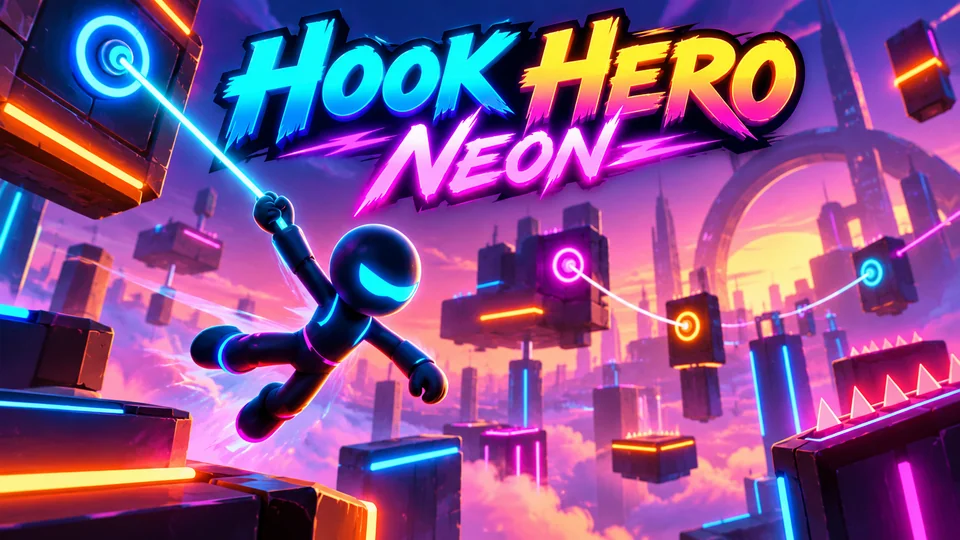
Hook Hero Neon
Tap and hold to grapple neon anchors, swing, release and chain momentum through glowing obstacle courses.
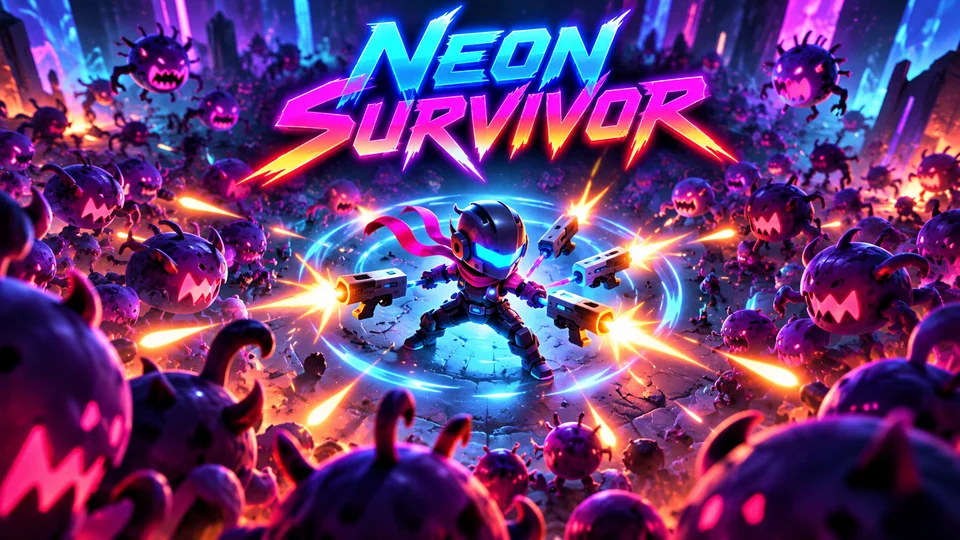
Neon Survivor
Survive enemy swarms while auto-attacking; choose one of three upgrades at each level-up to create emergent builds.
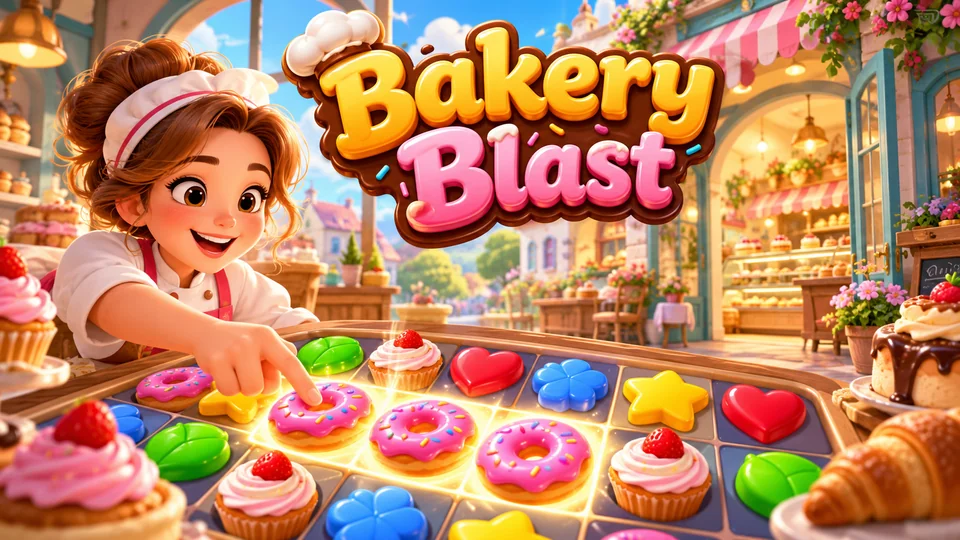
Bakery Blast
Complete fast matching boards to earn resources used to design and expand themed bakeries.
Browse all our Phaser game source code, or compare Phaser with no-code tools in our guide to HTML5 game makers.
Frequently asked questions
Is Phaser free for commercial games?
Yes. Phaser is released under the MIT licence, so you can use it in commercial games without fees or royalties. Keep its licence notice with your code. Phaser Editor, the optional desktop visual editor, is a separate paid product; you don't need it to make Phaser games.
Should I use JavaScript or TypeScript with Phaser?
Either works. TypeScript catches mistakes before you run the game and gives you autocomplete for the whole Phaser API from the definitions in the package. Every game we sell is written in TypeScript for those reasons, but plain JavaScript is fine for learning.
Can I make mobile games with Phaser?
Yes. Phaser's pointer events handle touch and mouse with the same code, the scale manager fits the game to any screen, and audio unlocks on the first tap. To publish to app stores, wrap the built game with a tool such as Capacitor.
How long does it take to learn HTML5 game development with Phaser?
It depends on your JavaScript. If you're comfortable with functions, classes and arrays, this tutorial already covers the core of Phaser: scenes, game objects, physics, input, timers and tweens. After that, small games are mostly practice. A polished commercial game takes much longer, mostly in art, tuning and testing rather than in learning Phaser.
Where is the Phaser 3 HTML5 game framework documentation?
On the official Phaser API documentation site: choose 3.90.0 from the version menu. The Phaser 3 type definitions in the npm package also document every class and method, which your editor shows as you type.
We make and sell HTML5 game source code; links to our games are marked as ours.