An HTML5 game is a web page that runs a loop: JavaScript reads input, updates the state of the game and draws a new frame on a <canvas> element about 60 times a second. That's why you can make a game in HTML with nothing more than a text editor and a browser. In this tutorial we build a small, complete game called Meteor Dodge in about 150 lines of plain JavaScript, one step at a time: tools, canvas, loop, drawing, input, collisions, game states, sound, saving, phones and publishing. Then we cover when an engine is worth it, tutorials by genre, and the shortcut of starting from a finished game.
Want something running in five minutes first? Copy our free Snake game in HTML5, save it as snake.html and double-click it. Every game in our free HTML game code collection works the same way.
What you need to make an HTML5 game
Three things, all free: an editor, a browser with developer tools and a local web server. You don't download an "HTML5 program": HTML5 is the set of web standards that every modern browser already implements, including the canvas, audio, input and storage APIs a game needs.
The best IDE for HTML5 game development
Any editor works, because the code is plain text. These are the ones worth considering as of October 2026:
| Editor | Cost | Why pick it |
|---|---|---|
| Visual Studio Code | Free, Windows, macOS and Linux | The safe default: JavaScript and TypeScript support built in, a terminal, a debugger and a large extension library |
| WebStorm | Free for non-commercial use, paid for commercial work | Strong refactoring, debugging and test runners with no setup |
| Visual Studio Community | Free for individuals, classrooms, open source and small teams under Microsoft's terms | A full Windows IDE with JavaScript and TypeScript projects; more than a canvas game needs |
| An online editor, or our code runner | Free | Quick experiments in the browser, even on a tablet |
If you're unsure, install VS Code. It's light, and the same setup carries you from a one-file game to a TypeScript project with a build step.
A browser with developer tools
Chrome, Edge and Firefox all ship developer tools: a console for errors and console.log, breakpoints, a performance panel that shows slow frames, and device emulation for phone screen sizes. Keep the console open while you work; most "my game shows a black screen" problems are a red error message there.
Test in more than one browser before you share a game. We run every one of our games through automated end-to-end tests on Chromium, Firefox and WebKit (the engine behind Safari), because the same code can behave differently in each.
A local server (and why double-clicking stops working)
A single-file game runs fine when you double-click it, because the browser opens it from a file:// address. As soon as you split code into JavaScript modules or load images and JSON level files, the browser blocks those requests from file://. MDN's JavaScript modules guide explains that you'll get CORS errors and need to test through a server. Any of these works:
# Option 1: Vite, a dev server that reloads the page when you save (needs Node.js 20.19+ or 22.12+)
npm create vite@latest meteor-dodge -- --template vanilla
cd meteor-dodge
npm install
npm run dev          # open http://localhost:5173

# Option 2: Python's built-in server, run from the folder that holds index.html
python -m http.server 8000
In VS Code you can also install Microsoft's Live Preview extension, which hosts a local server for the open folder. Vite is what we use for all 50 of our games, because the same tool also produces the optimized build you upload at the end. Python's server is for testing only; its documentation says it isn't meant for production.
How to make a simple HTML5 game, step by step
The game we'll build is Meteor Dodge: you steer a ship left and right along the bottom of the screen, meteors fall faster and faster, and your score is the number of seconds you survive. It's simple, but it has every part a bigger game has. The project is two files, index.html and game.js. Add each game.js snippet below in the order shown and you'll have the complete game.
Step 1: The HTML page
The page holds one <canvas>, a little CSS and the script. The viewport tag makes phones render the page at their real width instead of zooming out, and touch-action: none stops the page from scrolling or zooming while a finger is on the game.
<!doctype html>
<html lang="en">
<head>
  <meta charset="utf-8">
  <meta name="viewport" content="width=device-width, initial-scale=1">
  <title>Meteor Dodge</title>
  <style>
    html, body { margin: 0; height: 100%; overflow: hidden; background: #0b1020; }
    canvas { display: block; width: 100%; height: 100%; touch-action: none; }
  </style>
</head>
<body>
  <canvas id="game"></canvas>
  <script src="game.js"></script>
</body>
</html>
Step 2: Set up the canvas and the game state
A canvas has two sizes: the size it takes on the page and the size of its pixel buffer. On a phone with a device pixel ratio of 3, a 390-pixel-wide canvas needs a 1,170-pixel buffer to look sharp. resize() sets both and scales the drawing context, so the rest of the code can think in ordinary CSS pixels. All the state the game needs sits at the top of the file, where it's easy to find.
const canvas = document.getElementById("game");
const ctx = canvas.getContext("2d");
let width = 0, height = 0;

const player = { x: 0, y: 0, r: 18, speed: 420 };
let meteors = [];
let spawnTimer = 0;
let state = "ready"; // "ready" | "playing" | "over"
let score = 0, best = 0;

function resize() {
  const dpr = window.devicePixelRatio || 1;
  width = window.innerWidth;
  height = window.innerHeight;
  canvas.width = Math.round(width * dpr);
  canvas.height = Math.round(height * dpr);
  ctx.setTransform(dpr, 0, 0, dpr, 0, 0); // draw in CSS pixels from now on
  player.y = height - 60;
  player.x = Math.min(Math.max(player.x || width / 2, player.r), width - player.r);
}
window.addEventListener("resize", resize);
resize();
Step 3: The game loop
Every game runs a loop. In the browser you ask for the next frame with requestAnimationFrame, which calls your function just before the screen refreshes and passes a timestamp. Use that timestamp to measure how many seconds passed since the last frame (dt) and move everything by speed × dt. That keeps the game the same speed on a 60 Hz laptop and a 120 Hz phone.
let last = 0;
function frame(now) {
  const dt = last ? Math.min((now - last) / 1000, 0.1) : 0; // seconds, capped
  last = now;
  update(dt);
  draw();
  requestAnimationFrame(frame);
}
requestAnimationFrame(frame);
The cap of 0.1 seconds matters. Browsers pause animation frames in background tabs, so the first frame after you switch back can report a gap of several minutes. Without the cap, every meteor would jump off the screen at once.
Step 4: Draw the game
Drawing means clearing the canvas and painting every object again, every frame. The Canvas API gives you rectangles, paths, arcs, text and images. Here, meteors and the ship are circles, and the score and messages are text.
function circle(x, y, r, color) {
  ctx.fillStyle = color;
  ctx.beginPath();
  ctx.arc(x, y, r, 0, Math.PI * 2);
  ctx.fill();
}

function draw() {
  ctx.fillStyle = "#0b1020";
  ctx.fillRect(0, 0, width, height);
  for (const m of meteors) circle(m.x, m.y, m.r, "#ff8a3d");
  circle(player.x, player.y, player.r, "#5ee6c8");
  ctx.fillStyle = "#ffffff";
  ctx.font = "20px system-ui, sans-serif";
  ctx.textAlign = "left";
  ctx.fillText(`Score ${Math.floor(score)}   Best ${best}`, 16, 32);
  if (state !== "playing") {
    ctx.textAlign = "center";
    const msg = state === "ready" ? "Tap or press Space to start" : "Game over: tap to try again";
    ctx.fillText(msg, width / 2, height / 2);
  }
}
Redrawing everything is fast enough for hundreds of shapes. When you swap circles for sprites, load each image once with new Image() and draw it with ctx.drawImage. Our guide to HTML5 canvas games covers sprites, layers and performance in more depth.
Step 5: Keyboard, mouse and touch input
Don't move the ship inside the key event. Record which keys are held, then read that record in update(), once per frame. KeyboardEvent.code names the physical key, so WASD works on any keyboard layout. Pointer events cover mouse, pen and touch with one set of listeners.
const keys = new Set();
window.addEventListener("keydown", (e) => {
  if (["ArrowLeft", "ArrowRight", "Space"].includes(e.code)) e.preventDefault();
  keys.add(e.code);
  if (e.code === "Space" || e.code === "Enter") press();
});
window.addEventListener("keyup", (e) => keys.delete(e.code));

let pointerX = null; // where the finger or mouse button is held, or null
canvas.addEventListener("pointerdown", (e) => { pointerX = e.clientX; press(); });
canvas.addEventListener("pointermove", (e) => { if (pointerX !== null) pointerX = e.clientX; });
window.addEventListener("pointerup", () => { pointerX = null; });
window.addEventListener("pointercancel", () => { pointerX = null; });
preventDefault() stops the arrow keys and Space from scrolling the page, which matters as soon as your game sits inside a longer page or an iframe.
Step 6: Movement and collisions
update() is where the rules live. It turns input into a direction, moves the ship, spawns meteors on a timer that shortens as the score climbs, moves the meteors and checks for hits. Two circles overlap when the distance between their centres is less than the sum of their radii. Comparing squared values skips the square root.
function spawnMeteor() {
  const r = 10 + Math.random() * 22;
  const x = r + Math.random() * (width - 2 * r);
  meteors.push({ x, y: -r, r, vy: 160 + Math.random() * 140 + score * 6 });
}

function hits(a, b) {
  const dx = a.x - b.x, dy = a.y - b.y, rr = a.r + b.r;
  return dx * dx + dy * dy < rr * rr;
}

function update(dt) {
  if (state !== "playing") return;
  let dir = 0;
  if (keys.has("ArrowLeft") || keys.has("KeyA")) dir -= 1;
  if (keys.has("ArrowRight") || keys.has("KeyD")) dir += 1;
  if (pointerX !== null) dir = Math.max(-1, Math.min(1, (pointerX - player.x) / 40));
  player.x += dir * player.speed * dt;
  player.x = Math.max(player.r, Math.min(width - player.r, player.x));

  spawnTimer -= dt;
  if (spawnTimer <= 0) {
    spawnMeteor();
    spawnTimer = Math.max(0.2, 0.8 - score * 0.01); // spawn faster as the score climbs
  }
  for (const m of meteors) m.y += m.vy * dt;
  meteors = meteors.filter((m) => m.y - m.r < height);
  if (meteors.some((m) => hits(m, player))) { gameOver(); return; }
  score += dt;
}
Circles suit round things. For boxes, use an axis-aligned rectangle test (a.x < b.x + b.w && a.x + a.w > b.x and the same for y). For tile-based worlds, test the tiles around the player rather than every object. Once you need slopes, stacking or ragdolls, use a physics engine; see HTML5 game physics.
Step 7: Game states: start, play, game over
A game is always in one state, and the state decides what input does and what gets drawn. One variable is enough for a small game. Bigger games use scenes (Phaser calls them that) for the menu, the level, the pause screen and the results.
function press() {
  unlockAudio();
  if (state === "playing") return;
  meteors = [];
  score = 0;
  spawnTimer = 0;
  player.x = width / 2;
  state = "playing";
}

function gameOver() {
  state = "over";
  best = Math.max(best, Math.floor(score));
  saveBest();
  beep(110, 0.4);
}
Step 8: Add sound
Browsers block audio until the player interacts with the page. MDN's autoplay guide says starting Web Audio playback outside a user input event is subject to autoplay rules. So create or resume the AudioContext inside the first tap or key press, which is what press() does. This beep is generated by the Web Audio API, so there's no file to load:
let audio = null;
function unlockAudio() {
  audio ??= new AudioContext();
  if (audio.state === "suspended") audio.resume();
}

function beep(freq, seconds) {
  if (!audio) return;
  const osc = audio.createOscillator();
  const gain = audio.createGain();
  osc.frequency.value = freq;
  gain.gain.setValueAtTime(0.2, audio.currentTime);
  gain.gain.exponentialRampToValueAtTime(0.001, audio.currentTime + seconds);
  osc.connect(gain).connect(audio.destination);
  osc.start();
  osc.stop(audio.currentTime + seconds);
}
For music and recorded effects, load files with fetch, decode them with decodeAudioData and play them through the same context. Always give players a mute button; all of our games also accept a mute setting from the page that hosts them.
Step 9: Save the high score
localStorage keeps small values between visits. Wrap it in try/catch, because private modes and some embedded frames block storage, and a game that crashes on load because of a high score is a bad trade.
function loadBest() {
  try { best = Number(localStorage.getItem("meteor-dodge-best")) || 0; } catch { best = 0; }
}
function saveBest() {
  try { localStorage.setItem("meteor-dodge-best", String(best)); } catch { /* storage blocked: keep it in memory */ }
}
loadBest();
That's the whole game. Start the server, open the page, press Space or tap, and dodge.
Step 10: Make it work on phones
Most of the work is already done: the canvas fills the screen, touch-action: none stops scrolling, pointer events handle fingers, and the device pixel ratio keeps it sharp. What's left is design, not code:
- Orientation. Meteor Dodge works either way. A game that needs landscape should say so on screen rather than squash itself into portrait.
- Hit areas. Fingers are bigger than mouse pointers. Make buttons at least the size of a fingertip and keep them away from the screen edges, where system gestures live.
- Performance. Phones throttle when they get hot. Keep the number of draw calls and the size of images in check, and test on a real mid-range phone, not only in desktop emulation.
Read HTML5 mobile game development for scaling strategies, safe areas and wrapping a game as an app.
Step 11: Publish your HTML5 game
An HTML5 game is a folder of static files, so any web host can serve it. With Vite, npm run build writes an optimized copy to dist/; upload that folder. Common options:
- itch.io: zip the folder with
index.htmlat the top level. Its HTML5 upload rules allow up to 1,000 files and 500 MB once extracted, and file names are case-sensitive. - GitHub Pages: free static hosting from a repository; see the GitHub Pages docs.
- Your own website: upload the folder and link to it, or show it in an
<iframe>. Our guide to embedding an HTML5 game in a website covers WordPress and site builders.
For portals, hosting costs and ad revenue, continue with hosting HTML5 games and where to publish HTML5 games.
Make it a real game: what to add next
Meteor Dodge is a prototype. These are the next steps, roughly in the order we'd tackle them:
- Sprites and animation instead of circles: a sprite sheet, frame timing and hit effects. See HTML5 game sprites and animation.
- Levels and tuning in data files. Move numbers like speeds and spawn rates into a JSON file. In our games, waves, costs, levels and economy all live in JSON, so balancing doesn't mean editing code.
- A pause screen. Pause when the tab is hidden with the Page Visibility API, and suspend audio at the same time.
- Gamepad support. The Gamepad API is polled, not event-driven, so read it in
update()(snippet below). - Tests. Keep rules in plain functions (like
hits()) that you can unit test, and add an end-to-end test that loads the page and plays a few seconds. Our guide to testing and debugging HTML5 games shows the setup.
For gamepad steering, add these two lines to update() after the keyboard checks:
const pad = navigator.getGamepads()[0];
if (pad && Math.abs(pad.axes[0]) > 0.2) dir = pad.axes[0]; // left stick, with a dead zone
HTML5, CSS3 and JavaScript: who does what
People search for how to make games with just HTML5, or with HTML5 and CSS3, so it's worth being precise. HTML provides the page and the elements a game uses (<canvas>, <audio>, buttons). CSS lays out menus and HUDs and can animate elements. JavaScript runs the rules, the loop and the input. You can't make a real game without JavaScript.
You can, however, make some games without a canvas. Card games, memory games, quizzes and board games work well as ordinary HTML elements styled with CSS3 and moved with CSS transitions, because they have few moving parts and benefit from crisp text and built-in accessibility. Anything with many moving objects, like a shooter or a platformer, belongs on a canvas. Our canvas vs SVG vs DOM guide compares the three.
Older tutorials often use jQuery. You don't need it for games in 2026: querySelector, addEventListener and classList do the same job in every browser.
Choosing an HTML5 game engine
Writing a game from scratch, as above, is the best way to learn how games work. For anything bigger than a jam game, an engine saves months: it gives you sprites, animation, scenes, cameras, tilemaps, physics, audio and asset loading that you'd otherwise write and debug yourself. Versions below are the current releases on npm as of October 2026.
| Engine | What it is | Licence | Good for |
|---|---|---|---|
| Phaser 4.2.1 | Complete 2D framework: scenes, physics, tilemaps, input, audio | MIT | Most 2D games; 41 of our 50 games use it |
| PixiJS 8 | Fast 2D renderer; you bring the game structure | MIT | Custom 2D engines, lots of sprites |
| Three.js r186 | 3D rendering library | MIT | 3D games where you write the gameplay systems; 9 of ours |
| Babylon.js 9 | Full 3D engine with physics, GUI and an inspector | Apache 2.0 | Larger 3D projects |
| Excalibur 0.32 | TypeScript-first 2D engine | BSD-2-Clause | Developers who want types everywhere |
| KAPLAY | Small JavaScript and TypeScript game library | Open source | First games, classrooms, jams |
| Godot 4 | Desktop editor that exports to the web | MIT | Godot users; web builds need GDScript, not C# |
| GDevelop | No-code, event-based editor that exports HTML5 | MIT | People who don't want to write code |
Godot's web export documentation states that C# projects can't be exported to the web in Godot 4 and that web builds target WebGL 2.0. Editors like Godot and GDevelop produce a larger, less hackable output than a JavaScript framework, which matters if you want to customize or reskin the code later.
For a detailed comparison, read our guide to the best HTML5 game engines, then the Phaser tutorial if you pick Phaser. If you'd rather not code at all, see HTML5 game makers. You can also browse our Phaser games with source code and Three.js games to see what a finished project in each looks like.
HTML5 game tutorials by genre
The loop, input and collision code above carries over to every genre. What changes is the data structure at the centre of the game:
| Genre | The core idea | Where to go next |
|---|---|---|
| Arcade (Pong, Breakout, shooters) | Moving objects and simple collisions | Pong, Breakout, space shooter |
| Platformer | Gravity, jumping and tile collisions | Platformer code, endless runner |
| Top-down and RPG | A tilemap, 8-way movement, a camera that follows the player | How to make an HTML5 RPG |
| Fighting and beat 'em up | Hitboxes and hurtboxes, attack states with startup, active and recovery frames, an input buffer | Start from the platformer code and add an attack state machine |
| Strategy and tower defense | A grid, pathfinding, turns or waves | HTML5 strategy game tutorial, tower defense code |
| Adventure and story | Scenes, hotspots, inventory and dialogue | Point-and-click and text adventures |
| 3D | A scene graph, camera and lights | 3D HTML5 games |
For a fighting game or beat 'em up, the key is to separate the box that deals damage (hitbox) from the box that receives it (hurtbox), and to drive each attack through timed states so that a punch has wind-up and recovery the opponent can react to. Store attack data (damage, frames, knockback) in a table, not in code, so you can tune it.
How long does it take to make an HTML5 game?
It depends on scope far more than on the technology. As a rough guide for one person:
- A classic like Snake, Pong or Meteor Dodge: an evening to a weekend while you're learning, an hour or two once you know the pattern.
- A small, finished game with art, sound, a few levels, menus and saves: several weeks of evenings.
- A commercial game that portals or clients will accept: months. Content, polish, testing on many devices, localisation and documentation take far longer than the core loop.
The core mechanic is rarely the slow part. Menus, settings, saves, scaling, audio quirks, browser differences and balancing are.
Old HTML5 game tutorials: what changed
If you're following an HTML5 game tutorial from 2017 or earlier, the basics it teaches still hold, but some details are out of date:
| Then | Now |
|---|---|
setInterval for the loop | requestAnimationFrame with delta time |
| Separate mouse and touch events | Pointer events for both |
| Sound playing on page load | Audio starts after the first tap or key press |
| Script tags and hand-made build scripts | ES modules and a dev server like Vite |
| Phaser 2 | Phaser 4 (4.0.0 shipped in April 2026; 4.2.1 is current as of October 2026) |
| jQuery for DOM work | Built-in DOM APIs |
The W3Schools HTML game tutorial is a reasonable first read, but its loop uses setInterval(updateGameArea, 20), which isn't synced to the screen's refresh and can stutter. MDN's 2D Breakout tutorial and the MDN game development section are good free follow-ups.
Skip the build: start from a finished game
Building your own game is the best way to learn. If your goal is a game on your website, your portal or a client's campaign next month, starting from a finished game is faster. Every game in our catalog is a complete TypeScript project: source, data files for tuning, tests and a README with install, build and deploy steps. Each one passed a clean-room check (installed from a frozen lockfile, built, typechecked and tested outside our repository) before going on sale, and you can play every game in the browser before you buy.
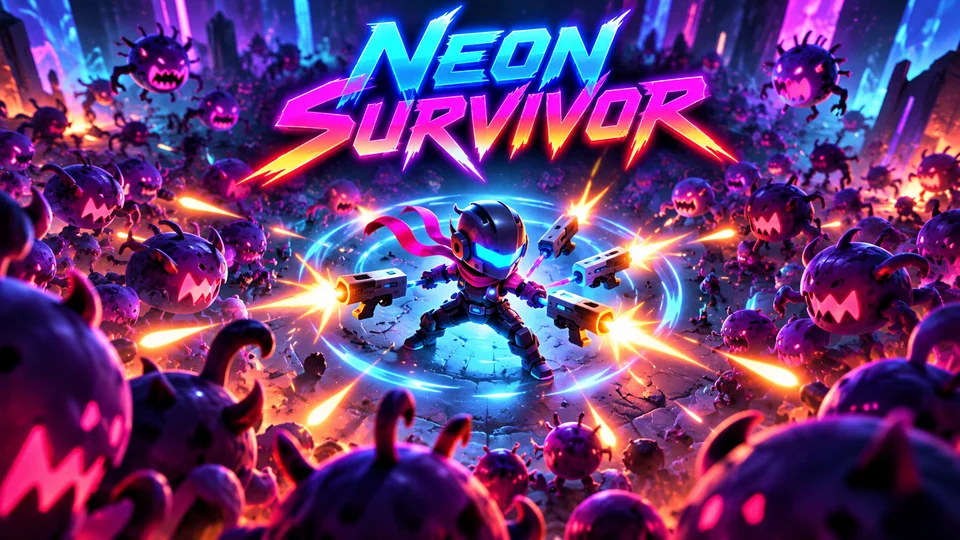
Neon Survivor
Survive enemy swarms while auto-attacking; choose one of three upgrades at each level-up to create emergent builds.

Liquid Lab
Pour layered liquids between tubes until each vessel contains a single formula or valid compound.
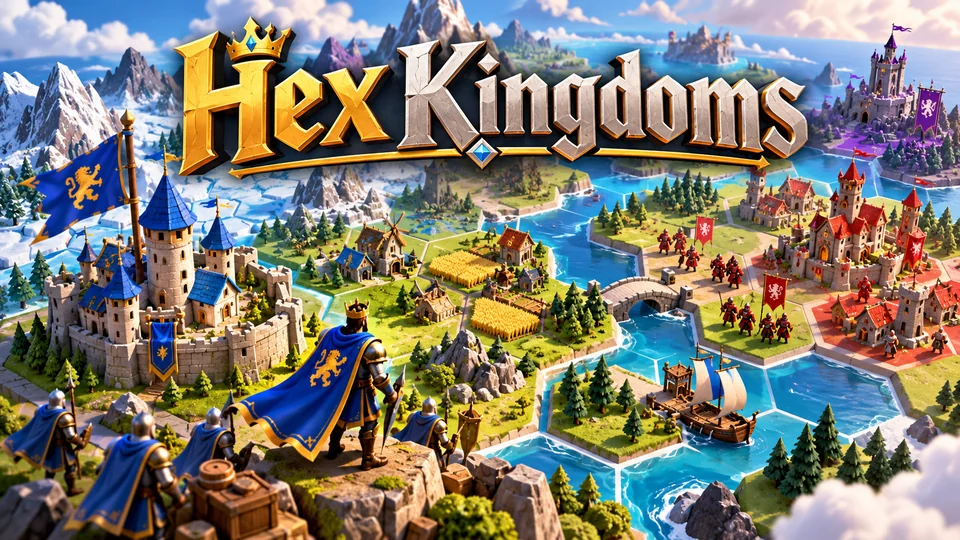
Hex Kingdoms
Expand across a compact hex map, gather resources, capture towns and outmaneuver AI kingdoms.
Browse all 50 HTML5 games with source code, or keep learning with the free, MIT-licensed HTML game code and the other HTML5 game development guides.
Frequently asked questions
Can I create a game with HTML5 and Visual Studio?
Yes. Visual Studio Community supports JavaScript and TypeScript projects, so you can write, run and debug an HTML5 game in it on Windows. Most HTML5 game developers use Visual Studio Code instead, which is a different, lighter editor from Microsoft that runs on Windows, macOS and Linux. Either works with the code in this tutorial and with engines like Phaser.
Where do you get the HTML5 program for game development?
There's no HTML5 program to download. HTML5 is built into every modern browser, so the "program" is your browser plus a text editor. Install Visual Studio Code, a current browser and, if you want a dev server, Node.js for Vite. Engines like Phaser are installed per project with npm install phaser.
Can I make an HTML5 game on a phone?
You can write a small one-file game on a phone or tablet with an online code editor, or paste one into our HTML game code runner. For anything bigger, use a computer and test on the phone: run Vite with npm run dev -- --host and open the address it prints on the phone, on the same Wi-Fi network.
Do I need a game engine to make an HTML5 game?
No. A canvas, requestAnimationFrame and input events are enough for arcade and puzzle games, as this tutorial shows. An engine starts to pay off once you need sprite animation, scenes, tilemaps, physics, asset loading and audio management. Our HTML5 game engines guide compares the options.
Is there a PDF version of this HTML5 game tutorial?
Not as a separate download. To keep a copy, use your browser's Print command and choose Save as PDF. For books and courses on HTML5 game programming, see our lists of HTML5 game development books and courses.
Can I sell a game I make from an HTML5 tutorial?
Yes, if the code and assets are yours or licensed for commercial use. Code you write yourself from a tutorial is yours. Check the licence of anything you copy: an engine (Phaser, PixiJS and Three.js are MIT), free code, art, fonts and sound. Our guide to making money with HTML5 games covers ads, portals and licensing.
We make and sell HTML5 game source code; links to our games are marked as ours.